Illustrated workspace with calendar, clock, and task list, representing weekly schedule planning.

How to Create a Weekly Schedule

By Sammi Cox

A weekly schedule template is a reusable layout that organizes your week in one place. Most templates include columns for each day and rows for tasks, appointments, and notes. Templates are available in printable formats like PDFs and planners, or digital tools like spreadsheets, Google Sheets, and collaborative platforms such as Kumospace. Instead of creating a new schedule every week, you can reuse the same format and update it with new tasks and events. Common names include weekly planner, weekly calendar template, and week-at-a-glance planner. In this blog, we’ll talk about how to create a weekly schedule and the benefits of having one.

Key Takeaways

  • A weekly schedule template is a reusable layout for organizing tasks, meetings, and priorities across seven days in printable or digital formats.
  • Different templates fit different needs, including simple weekly grids, hourly planners, class schedules, meal prep plans, and budget trackers. Digital tools like Kumospace also support real-time collaboration and quick updates for teams.
  • The best results come from consistently using one template, prioritizing tasks, blocking focused work time, and adjusting the schedule based on what improves productivity each week.

Why You Should Be Using a Weekly Schedule Template

Without a weekly schedule planner, deadlines slip, meetings overlap, and stress builds quickly. Weekly templates create a single view that helps you track project progress, spot conflicts before they happen, and protect time for what matters most. When you can see exactly when you’ll tackle your top priorities, anxiety drops because the decisions are already made.

These templates also connect long-term goals with daily action. Quarterly OKRs and semester plans become manageable when broken into weekly deliverables. For distributed teams using Kumospace, a shared weekly schedule creates transparency around availability, active projects, and upcoming deadlines.

See Your Entire Week at a Glance

The power of a weekly view comes from reducing day-to-day chaos. When you can see Monday through Sunday on one page, it becomes easier to spot that Tuesday and Thursday already have three meetings scheduled before accidentally adding a fourth.

A well-designed template includes morning, afternoon, and evening sections for each day, along with a “Weekly Goals” area for top priorities. Color coding helps separate categories visually: blue for meetings, green for focused work, and orange for personal tasks.

Digital tools like Kumospace make these updates easy, helping teams stay organized with a shared visual system everyone can follow.

Easily Adjust and Customize Your Weekly Schedule

No week goes exactly according to plan. A client pushes a deadline, a colleague calls in sick, or an urgent project lands on your desk Wednesday morning.

Digital templates let you move tasks from one day to another in just a few clicks. Moving a “Q2 report draft” from May 6 to May 8, 2026 takes seconds. Compare that to paper planners where you need to cross things out and rewrite them elsewhere.

Customization options include changing your start day, adding a “Top 3 Priorities” section, or inserting recurring items like “Team standup at 9:00 a.m. in Kumospace.” Instead of designing the perfect layout on day one, test your template for two to three weeks and adjust based on what actually works.

Prioritize Tasks and Protect Focus Time

Not all tasks on your weekly schedule deserve the same amount of attention. Using priority labels like P1, P2, and P3, or simple icons like stars, helps you identify must-do items quickly.

On Monday, you might mark “Client proposal for ACME Corp” as P1 from 9:00–11:00 a.m., while “Inbox cleanup” gets a P3 label for late afternoon. This visual structure helps prevent low-value work from taking over your most productive hours.

Time blocking takes this further by reserving 90–120 minute sessions for focused work and protecting them from meeting requests. In team environments, scheduling focus blocks in shared spaces like Kumospace helps coworkers know when you are unavailable versus open for collaboration.

Collaborate With Your Team Using Weekly Schedules

Solo planning is different from team coordination. A collaborative weekly template might list team members on one side and days across the top, showing who is responsible for what each day.

Sharing weekly calendars improves coordination for recurring events, such as a sprint review every Thursday hosted in Kumospace. Benefits include fewer status meetings, smoother handoffs, and clearer expectations around availability.

Keep collaborative templates simple with tasks, owners, due dates, and status updates. Overly detailed fields can slow teams down and reduce adoption.

Connect Links, Documents, and Resources to Your Week

A modern weekly schedule template goes beyond simple boxes by linking directly to the resources needed for work.

Add URLs to meeting rooms, such as a persistent Kumospace room link for Monday standups, directly inside scheduled tasks. Attach documents like briefs or presentation decks to entries such as “Marketing review – May 7, 2026.”

Keeping resources one click away reduces context switching and saves time otherwise spent searching for files. This level of integration is only possible with digital templates, not printed weekly calendars.

Common Types of Weekly Schedule Templates

Different goals require different layouts. Work, school, and home life each benefit from specialized weekly templates designed for their unique demands.

Classic Weekly Schedule Template

A simple grid with seven columns (Monday–Sunday) and flexible rows for tasks, notes, and events. This classic weekly schedule format works well for anyone wanting a clean week-at-a-glance view without detailed time slots. A freelancer might list work tasks and personal errands under each day while mirroring the schedule in Kumospace for virtual coordination.

Weekly Work Schedule Template

A Monday–Friday layout focused on standard work hours, such as 8:00 a.m.–6:00 p.m. for June 1–5, 2026. Managers can assign shifts or responsibilities with fields for employee name, role, start time, end time, and location, whether in-office or remote through Kumospace. This weekly work schedule template works well for retail, support, and hospitality teams.

Weekly Schedule Template With Time Segments

Each day is divided into hourly or half-hour blocks from 7:00 a.m. to 9:00 p.m. A weekly schedule with time segments is useful for professionals, students, or healthcare workers managing detailed schedules. A student might organize classes, study sessions, gym time, and a part-time job while adjusting plans as needed.

Biweekly Schedule Template

This biweekly schedule template displays two full weeks, such as May 4–17, 2026, on one page for a broader project view. It works well for sprint planning and launch timelines, though it can feel crowded for detailed daily scheduling.

Weekly Class Schedule Template

Designed for students, this format uses days as columns and time slots as rows for semester planning. Each section can include course names, room numbers, instructors, and reminders like “quiz” or “lab report due.” Digital versions can also sync with study groups meeting in Kumospace.

Weekly To-Do List Template

Each day gets its own checklist column with checkboxes for specific tasks. This weekly to-do list template works well for people who prefer task lists over time-blocked calendars. A freelancer in June 2026 might list client deliverables under weekdays and personal errands under Saturday and Sunday, with a “Must-Dos” section at the top.

Weekly Meal Planner Template

On a weekly meal planner, days run horizontally with meal slots (breakfast, lunch, dinner, snacks) vertically. A family planning meals for May 11–17, 2026 can note recipes and ingredients, with a grocery list area tied to weekly meals. Digital versions can include recipe links shared via household hangouts in Kumospace.

Weekly Budget Template

A financial layout with income and expense categories for a specific week like May 18–24, 2026. Sections for “Planned,” “Actual,” and “Difference” cover groceries, transportation, subscriptions, and entertainment. Use this weekly budget template alongside your regular weekly schedule so spending aligns with planned activities.

What to Look For in a Weekly Schedule Template

Choosing the right template determines whether you’ll stick with it or stop planning by Wednesday.

Essential structural elements include clearly labeled days, readable fonts, enough white space, and dedicated space for weekly goals. Look for useful features like time blocks, priority indicators, and sections for notes or follow-ups.

For digital planner templates, look for collaboration features, links to meeting spaces like Kumospace, and easy customization. Choose a template that matches your real schedule, including meetings, kids’ activities, and commute time, instead of an idealized version of your week.

How to Set Up Your Weekly Schedule Template for Success

Setting up your template properly takes a few minutes but saves hours of confusion throughout the week.

List All Tasks and Commitments

Brain-dump everything for your target week, such as June 1–7, 2026. Include meetings, deadlines, personal errands, family activities, and recurring routines like your weekly team check-in in Kumospace. Create this list before filling out your template, and include exact details like “Client demo, Tuesday, June 2 at 2:00 p.m.”

Prioritize Your Workload

Sort your master list into high, medium, and low priority items. Mark “Submit Q2 budget by Thursday, June 4” as high priority; “Clean up old files” goes low. Limit each day’s must-do list to two or three critical tasks to avoid overload.

Schedule Tasks in Time Blocks

Map tasks to specific days and times based on your energy patterns. Block 9:00–11:00 a.m. Monday, June 1, 2026 for deep work; 1:00–2:00 p.m. for a marketing sync in Kumospace; 4:30–5:00 p.m. for admin work. Include breaks and buffers to create realistic schedules.

Assign Owners and Deadlines (For Teams)

Every collaborative task needs a clear owner and due date. “Draft campaign brief – Owner: Alex – Due: Wednesday, June 3, 2026 – Review in virtual office at 3:00 p.m.” Keeping ownership visible in the weekly template prevents ambiguity.

Customize With Colors, Tags, and Shortcuts

Use one color for meetings, another for deep work, a third for personal tasks. Add tags like #client, #internal, or #family to group similar work. Include quick links to your regular Kumospace office for all internal meetings. Start with two or three colors and avoid over-customizing initially.

Review, Adjust, and Improve Weekly

Your first template version is a hypothesis to test. Schedule a Friday afternoon review to see what you accomplished and what slipped. Move unfinished tasks intentionally to the following week. Make minor layout tweaks over time rather than constant redesigns.

Digital vs. Printable Weekly Schedule Templates

Remote teams, students using tablets, and professionals who need to make quick changes often benefit most from digital templates. They offer instant editing, searchability, and clickable links to tools like Kumospace.

Printable templates appeal to people who prefer writing by hand. Keeping a paper planner on your desk requires no devices and offers a more tactile experience. A hybrid approach can also work well by maintaining a digital master schedule while printing a simplified version for daily reference.

Your choice depends on your lifestyle, job type, and collaboration needs. Teams working across time zones often gain the most value from shared digital templates visible in Kumospace.

Tips and Best Practices for Using a Weekly Schedule Template

Consistency beats complexity in weekly planning.

  • Pick a consistent planning time (Sunday evening or Monday morning) and protect it
  • Limit daily tasks to what realistically fits, leaving more space for unexpected issues
  • Group similar work into single blocks to reduce context-switching
  • Treat your schedule as a live document, adjusting midweek rather than abandoning it
  • Save completed versions to track patterns over monthly periods

Using Kumospace to Bring Your Weekly Schedule Template to Life

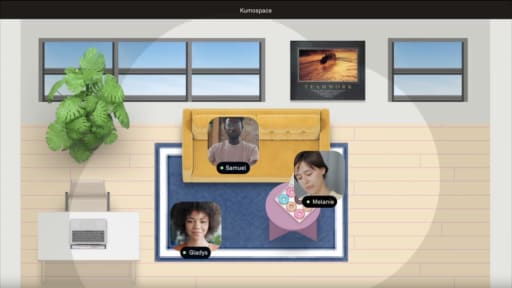
Kumospace functions as a virtual office where teams can schedule recurring standups, project check-ins, and breaks directly from weekly templates.

A typical week might include daily 10:00 a.m. standups in Kumospace, Wednesday brainstorming sessions in a dedicated virtual space, and Friday retrospectives in a lounge room. Everyone knows exactly where to go for each event, turning a weekly schedule from a static list into a coordination hub.

Remote and hybrid teams benefit from keeping one shared schedule alongside their Kumospace office to align time zones, availability, and priorities.


Conclusion

A weekly schedule template helps turn scattered tasks and commitments into a clear plan you can actually follow. Whether you prefer a printable planner or a digital tool, the right template makes it easier to prioritize work, manage time, and stay organized throughout the week.

The key is consistency. Start with a simple layout, use it for a few weeks, and adjust it based on your real routines and responsibilities. For teams, shared tools like Kumospace can make weekly planning even more effective by keeping meetings, availability, and collaboration in one connected space.

Frequently Asked Questions

Transform the way your team works from anywhere.

A virtual office in Kumospace lets teams thrive together by doing their best work no matter where they are geographically.

Headshot for Sammi Cox
Sammi Cox

Sammi Cox is a content marketing manager with a background in SEO and a degree in Journalism from Cal State Long Beach. She’s passionate about creating content that connects and ranks. Based in San Diego, she loves hiking, beach days, and yoga.

Transform the way your team works.