An online planner is a web-based tool that helps you organize tasks, events, and goals from your laptop, tablet, or phone. Unlike traditional paper planners, digital versions save automatically, sync across devices, and let you search for any entry in seconds.
When we talk about an “online planner for free,” we mean planners you can build and use without paying, from simple printable layouts to fully interactive, collaborative dashboards. These range from basic calendar apps to sophisticated workspaces that combine planning with video, chat, and virtual rooms.
The benefits over paper are substantial:
- Automatic saving eliminates the fear of losing your notes
- Search functionality finds any task or event instantly
- Reminders ensure you never miss deadlines or appointments
- Cloud sync keeps everything updated across all your devices
- Collaboration lets classmates, teams, or family members contribute in real-time
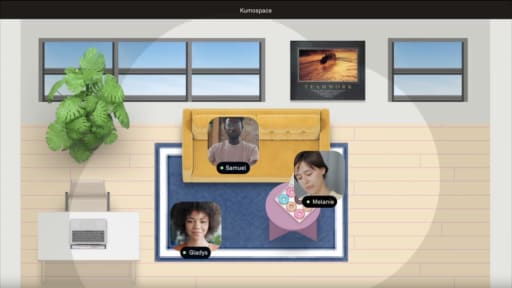
Simple printable planners work well for individual use, but interactive workspaces like Kumospace take planning further by combining your schedule with video meetings, chat, and virtual rooms. Teams can keep a live weekly planner visible in a shared virtual office, making it easy to discuss priorities without switching between apps.

This section gives you a practical workflow to create your own planner from scratch. Whether you are planning a remote team’s week, managing university assignments, or organizing a side business, these steps apply.
Step 1: Clarify your purpose. Ask yourself what you are planning for. A remote team needs shared visibility into everyone’s schedule. A student needs to track assignments and class schedules across multiple courses. A freelancer needs to balance client work with business development. Decide whether you need daily, weekly, or monthly views, or a combination.
Step 2: Choose your tool stack. Pair a free document, spreadsheet, or calendar app with Kumospace as the shared, always-open space where your planner lives. This combination gives you both the planning document and a place to discuss it live.
Step 3: Create a blank layout. Add a seven-column table for days of the week, with rows for time blocks from 08:00 to 20:00 or sections for To-do, Meetings, Notes, and Goals. Keep it simple, you can always add complexity later.
Step 4: Add recurring events and routines. Block in your weekly team standups, lectures with exact times and rooms, gym sessions on Tuesdays and Thursdays, or invoice days on the 1st and 15th of each month. These anchors give your week structure.
Step 5: Color-code categories. Use distinct colors for work, school, personal, and health. Add simple labels like “Deep work,” “Client calls,” or “Study: Biology 201” so you can scan the planner quickly.
Step 6: Upload or link the planner inside a Kumospace room. This makes your planner visible during meetings, and teammates can co-edit or discuss priorities live without switching apps.
Step 7: Save as a reusable template. Next week, you only update dates and specific tasks instead of rebuilding from scratch. This is how you create your own planner once and use it forever.
Choosing the Right Free Planner Template
Templates save time and help non-designers get a polished result quickly. The key is picking one that matches your actual schedule rather than an idealized version of your life.
Choose a five-day workweek template for standard office jobs, a seven-day template for families or hospitality workers, and time-blocked templates for freelancers or creators who need to track billable hours.
Customizing Your Planner Layout and Style
Customization should prioritize clarity and speed, not just aesthetics. A beautiful planner you cannot read quickly is worse than a plain one that works.
Start with color schemes that create a visual language. Assign one color per area of life or department: blue for meetings, green for finance, orange for marketing. This lets you scan the planner and immediately understand what type of work fills each block.
For typography, stick to one or two font families only. Use clear headings for days or categories and slightly larger fonts for key deadlines. Avoid decorative fonts that slow down reading.
Add simple design elements such as icons for calls, meetings, and deadlines, but resist the urge to clutter every block. The goal is to make scanning easier, not harder.
Include a small Weekly focus or Top 3 goals box at the top of each planner page. This anchors your priorities and prevents you from getting lost in small tasks.
Adding Tasks, Events, and Reminders
A planner only works if it reflects real commitments and gets updated consistently. The goal is to make your planner the single source of truth for what needs to happen.
Batch-add key dates at the start of each semester, quarter, or project. Enter assignment deadlines for all your classes at once, schedule recurring one-on-ones every Tuesday at 10:00, or set deadlines for billing cycles on specific calendar days.
Separate hard-scheduled events with exact times from flexible to-do lists. Mark them differently, bold for fixed events and regular weight for tasks you can move. This prevents the stress of missing actual appointments while giving you flexibility on other work.
Pair your planner with calendar or reminder tools for alerts. The planner holds the big-picture overview, while your phone or computer handles the notifications. This combination keeps you aware of upcoming deadlines without constantly checking your schedule.

Kumospace is a free online platform that combines video, chat, and spatial rooms, making it ideal for turning a static online planner into a shared command center. Instead of sending calendar links back and forth, your team can gather in a virtual space where the planner is always visible.
To get started, set up a free Kumospace workspace for your small team, study group, or club. Name rooms according to their purpose, such as War Room for strategy sessions, Study Hall for focused work, or Weekly Planning for schedule reviews.
Display or link to your planner inside Kumospace so everyone sees the same weekly or monthly schedule during meetings. No more asking who has the latest version or sharing screens repeatedly.
Typical workflows include Monday planning sessions where the team gathers around the planner to set deadlines, daily standups to assign tasks and track progress, and study groups reviewing assignment boards before each work session. Teams can keep Kumospace open in the background during the day, walking to the planning room to update tasks or check deadlines together. This approach turns a static free planner into a living, interactive space that supports remote and hybrid collaboration.
Using Your Planner in Remote and Hybrid Teams
Remote work often scatters information across chats, emails, and disconnected tools. A shared planner in Kumospace solves this by creating a single location for schedule visibility.
Establish a routine where each team begins the day in Kumospace, looks at the shared weekly planner, and adds any new tasks that came in overnight. This five-minute check prevents hours of confusion later.
Managers can block focus time for the whole team directly in the planner. For example, mark No meetings 9:00–11:00 on Wednesdays so everyone protects deep work time. Discuss these blocks live in Kumospace to get buy-in from the team.
Create separate planner views for different purposes, such as a high-level roadmap visible in the main room, detailed daily task lists for each team member, and project-specific timelines for long-term projects. During one-on-ones, use the planner to review progress, update goals, and agree on next-week priorities. Everything stays in one place, avoiding the need to switch between multiple tabs or apps.
Study and Personal Planning in a Shared Virtual Space
Students and individuals benefit from the same collaborative approach, even when the group is small.
Create a weekly study planner visible in a Kumospace Library room, with color-coded blocks for different subjects and clearly marked exam dates. When it is time to study, friends or classmates can meet inside the space, check the shared planner, and decide which topic or assignment to work on together.
Add personal routines to the planner, such as morning workouts, language practice, or portfolio work, to balance academic or work obligations with other activities. Students juggling homework, classes, and extracurriculars find that this overview prevents important tasks from slipping through the cracks.
Having the planner open in a virtual room helps reduce procrastination. The plan is always visible when you log in, creating gentle accountability without nagging.

These concrete planner examples show how different people configure their systems. Adapt them to your situation.
Remote Marketing Team
A shared weekly planner displayed in a Kumospace War Room, with columns for each weekday and rows for campaigns, content production, and meetings. The team gathers Monday morning to review the week, then checks back throughout the week to track progress on each project.
University Student
A semester-long monthly planner listing exam dates and assignment deadlines, plus a weekly planner with class times and study blocks. Both are accessible from laptop and phone. The student shares the weekly schedule with a study group in Kumospace to coordinate homework sessions and manage classes together.
Freelancer
A monthly income/expense tracker, weekly time-blocked planner (client work, outreach, admin), and a daily top-3 list for deep work sessions. The freelancer uses this to set deadlines for each new project and track billable hours. Everything lives in one workspace for quick access.
Family Organizer
A shared weekly planner where each family member has a row showing school runs, activities, and meal plans. The family can display this during online catch-ups or share online so everyone stays on top of household logistics.
Each of these setups works inside Kumospace, letting the people involved meet, talk, and review the planner together rather than passing static documents back and forth.