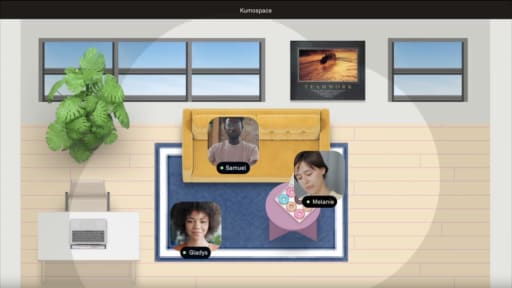
Illustration of a shared team calendar with highlighted dates and connected team member avatars.

How to Build a Powerful Group Google Calendar for Your Team

By Sammi Cox

A group Google Calendar is a shared calendar that multiple people can view, edit, and manage in real time. Instead of sending individual event invitations, a dedicated group calendar creates a single place where everyone can see the same schedule. Whether you’re coordinating a marketing team, syncing company holidays across time zones, or managing a family schedule, it helps keep everyone aligned.

It reduces back-and-forth emails about meeting times, makes recurring events easier to track, and allows multiple people to add events to the same schedule. It also pairs well with tools like Kumospace, where Google Calendar handles scheduling and Kumospace provides the live virtual collaboration space.

This article explains how to create a group calendar, share it with individuals or a Google Group, manage permissions, and keep it organized.

Before You Start: Requirements and Setup

Before diving into the creation process, make sure you have everything you need. The setup is straightforward, but a few minutes of preparation can save time later.

You’ll need a Google account to create and manage a group calendar. For organizations, this is typically a Google Workspace account managed by your IT department. The steps in this article reference the Google Calendar web interface at calendar.google.com as of 2026, though the layout may change slightly over time.

Quick checklist before you begin:

  • Active Google account (personal Gmail or Google Workspace)
  • Access to calendar.google.com in a web browser
  • If sharing with an existing team, consider setting up a Google Group first (e.g., marketing-team@yourcompany.com)
  • For larger organizations, check sharing policies with IT, especially if you plan to share outside your company domain
  • Decide on the calendar’s purpose and name in advance (e.g., “Product Roadmap – 2026” vs. “Company Holidays – US Office”)

Having a clear purpose for your newly created calendar makes naming and permission decisions easier down the line.

How to Create a Group Google Calendar (Step-by-Step)

This is the core section where you’ll create the calendar. Follow these steps and you’ll have a new calendar ready to share in a few minutes.

Start by opening your browser and navigating to calendar.google.com. Sign in with your Google account if you haven’t already. Once you’re in, look at the left sidebar where you’ll see your list of existing calendars.

Find the section labeled “Other calendars” in the left sidebar. Next to it, you’ll see a plus sign icon. Click the plus icon to reveal a dropdown menu with several options.

From the dropdown, select “Create new calendar.” This opens a form where you’ll define your new calendar’s details.

Enter a clear, descriptive name for your calendar. Good examples include “Customer Support Schedule – 2026” or “Remote Standups – Kumospace Room A.” The name should immediately tell members what the calendar is for.

Optionally, add a description in the description field. This is a good place to note the calendar’s purpose, who should use it, or include a link to your team’s Kumospace space or project documentation. For example: “Shared schedule for weekly team syncs. Join us in Kumospace: [room link].”

Set the correct time zone for the majority of participants. If your team spans multiple time zones, choose the one where most events will originate; you can note additional time zones in individual event details later.

Click “Create calendar” at the bottom of the form. Your calendar will appear under “My calendars” in the left sidebar, ready for customization.

Troubleshooting: If you don’t see the “Create new calendar” option, your admin may have restricted calendar creation. This can happen with school or corporate Google Workspace accounts. Contact your IT department to request access or have them create the calendar for you.

How to Share Your Group Calendar with People or Google Groups

Creating the calendar is only step one. Sharing it with the right people and setting appropriate permissions is what turns it into a true group calendar.

Navigate to the left sidebar and hover over your new calendar name under “My calendars.” Click the three-dot menu (⋮) that appears, then select “Settings and sharing” from the dropdown.

Scroll down until you find the section labeled “Share with specific people or groups.” This is where you’ll add everyone who needs access.

Click “Add people and groups” to open the sharing dialog. You have two options here:

Sharing Method

Best For

Example

Individual email addresses

Small teams, specific people

alice@company.com, bob@company.com

Google Groups

Large teams, dynamic membership

design-team@company.com

Enter the email addresses or Google Group name, then choose a permission level from the dropdown. Here’s what each level means in practice:

  • See only free/busy (hide details): Users see when time slots are blocked but can’t view event details. Ideal for external stakeholders who just need availability info.
  • See all event details: Full read access to everything on the calendar. Good for the broader organization or family members who need visibility.
  • Make changes to events: Users can add, edit, or delete calendar events but can’t change sharing settings. Perfect for core team members.
  • Make changes and manage sharing: Full administrative control including inviting others. Reserve this for team leads or calendar owners.

For example, give your exec team “Make changes to events” permission so they can reschedule meetings, while the entire organization gets “See all event details” for visibility without edit access.

Click Send when you’re done. Google sends a notification email to each person, and the calendar appears under “Other calendars” for those users automatically.

Using a Google Group simplifies management for larger teams. When you add or remove someone from the group, their calendar access updates automatically, so you do not need to manually adjust permissions every time team membership changes.

Helping People Find and Add the Shared Calendar

Sometimes people miss group calendar invitations in their inbox, or new users join after the initial sharing. Making your calendar discoverable helps prevent confusion and repeated “how do I find this?” questions.

Every calendar has a unique calendar ID that users can use to subscribe manually. To find it, go to “Settings and sharing” for your calendar and scroll down to the “Integrate calendar” section. Copy the Calendar ID. It typically looks something like team-calendar@group.calendar.google.com.

When new group members need to add the calendar, they can follow these steps:

  1. In their own Google Calendar, click the plus sign next to “Other calendars”
  2. Select “Subscribe to calendar”
  3. Paste the calendar ID into the search box
  4. Press enter and click on the matching calendar to subscribe

Once added, the shared calendar appears in their “Other calendars” list. Each person can color code it individually without affecting how others see it.

Best practice: Pin the calendar ID and a short “how to add” note in a central location. This could be your team wiki, a Slack channel topic, or your Kumospace room description. This allows new users to add it themselves instead of waiting for an invitation.

Adding and Managing Group Events Effectively

With your group calendar created and shared, here is how to use it day to day for scheduling and managing events.

To add events to the shared calendar, click on any time slot in your calendar view. In the event creation window, look for the “Calendar” dropdown. Make sure you select your group calendar from the list rather than your personal calendar. This ensures the event appears for everyone with access.

Fill in the essential event details:

Field

What to Include

Example

Title

Clear, descriptive name

“Weekly Sprint Review – Engineering”

Time

Start and end times

Tuesday 3:00–3:30 PM

Location

Physical room or virtual link

Kumospace room link, Conference Room B, or Google Meet

Description

Agenda, relevant links, context

“Review sprint progress. Slides: [link]”

When adding guests, type their email addresses in the “Add guests” field. If you’re inviting a Google Group, type the group name and use the down arrow to expand and verify group members before saving.

For recurring team meetings, set up repeating events. Click on the time or date field and select a recurrence pattern such as weekly, monthly, or custom. Examples include “Weekly Sprint Review – Tuesdays 3:00–3:30 PM” or “Monthly Remote Social in Kumospace.”

A few best practices for group event management:

  • Use consistent naming patterns so people can quickly scan the calendar
  • Always include the relevant link (Kumospace room, video call, or document) in the description
  • Set notifications appropriately. Default reminders work for most events, but you can add extra reminders for major milestones like a Q3 2026 product launch
  • Attach relevant files (slides, briefs, spreadsheets) directly to the event to keep everyone aligned

Tips for Organizing and Maintaining a Clean Group Calendar

A group calendar can become chaotic over months and years without some structure. Here’s how to keep things manageable.

Establish naming conventions. Adopt a pattern like “[Team] – [Type] – [Short Topic]” for all events. For instance, “Support – Training – New Ticket Workflow” or “Marketing – Meeting – Campaign Review.” Consistency makes scanning the calendar faster and helps people find shared calendars and events quickly.

Keep the calendar focused. Reserve the group calendar for team-wide or group-relevant events. Discourage adding personal items or 1:1 meetings unless the calendar was specifically created for that purpose. When events don’t belong, they create noise that makes the calendar less useful.

Color code by category. Use different colors for meetings, deadlines, launches, and social events. While each person can customize colors locally, establishing a team standard (green for launches, blue for meetings, red for deadlines) creates visual consistency in screenshots and screen shares.

Assign calendar owners. Designate one or two people with “Make changes and manage sharing” permission as official calendar owners. Their job is to periodically clean up outdated recurring meetings, remove former team members, and adjust access when people join or leave. This helps prevent calendar decay over time.

Consider multiple calendars. Rather than putting everything into a single calendar, create separate group calendars for different purposes such as “Company Holidays – 2026,” “Engineering Releases,” or “Remote Events in Kumospace.” This lets people subscribe only to what’s relevant to them.

Handle time zones thoughtfully. For international teams, set a primary time zone for the calendar but include time zone abbreviations in event descriptions for important events. For example, “10:00–11:00 AM PT / 1:00–2:00 PM ET” helps prevent confusion across regions.nd other formatted content.


Ownership, Deletion, and Long-Term Management

Calendar ownership matters more than most people realize. If the primary owner’s Google account is deleted from the organization, the calendar itself may be deleted, taking all that scheduling history with it.

To transfer ownership before someone leaves, go to “Settings and sharing” for the calendar. Under “Share with specific people or groups,” ensure the new owner has full permissions (“Make changes and manage sharing”). Depending on your Google Workspace edition, use the “Transfer ownership” option to officially designate them as the new owner.

Concrete example: Your HR coordinator who created “HR – Recruiting Calendar” is leaving in September 2026. Before IT deprovisions their account, HR should transfer ownership to hr-manager@company.com or a shared account like recruiting@company.com.

Organizations can reduce this risk by adopting a policy: create calendars from role-based accounts such as ops@company.com or team-leads@company.com rather than individual personal accounts. When someone leaves, the account and its calendars remain intact.

Schedule a brief annual review of all major group calendars. During this review:

  • Remove calendars that no longer serve a purpose
  • Update sharing lists to reflect current team membership
  • Verify that ownership sits with active account
  • Clean up stale recurring events that no one attends

This maintenance takes about 30 minutes once a year but prevents larger issues later.

Using Group Google Calendars Alongside Kumospace

Scheduling and meeting are two different problems. Google Calendar handles scheduling by determining when things happen. Kumospace focuses on hosting by providing immersive online spaces where those scheduled events take place. Combining them creates a smoother workflow for remote and hybrid teams.

Here’s how to integrate them effectively:

Add a Kumospace room link as the “location” for recurring team huddles. Instead of a physical room or generic video link, paste your Kumospace URL. When participants click the event, they go directly to your virtual space.

Create a dedicated “Kumospace Office Hours” calendar shared with your entire organization. This lets anyone see when virtual drop-in hours are available without searching Slack or asking around. Open time slots become visible to anyone who might want to join.

Use Google Calendar reminders to nudge people before Kumospace social events or virtual offsites. A 15 minute reminder helps people join on time for quarterly remote team building sessions.

For teams already using Google Workspace, think of Kumospace as a complementary layer. The calendar tells you when to show up, and Kumospace makes the actual gathering more engaging than a standard video grid. Together, they address both sides of the remote coordination process.

Conclusion

A group Google Calendar provides a simple way to keep teams, organizations, and families aligned around shared schedules. By creating a dedicated calendar, setting clear permissions, and establishing a few basic management practices, you can avoid scheduling confusion and keep important events visible to everyone who needs them.

For remote and hybrid teams, pairing Google Calendar with tools like Kumospace creates a complete workflow. Google Calendar helps everyone know when something is happening, while Kumospace provides the shared virtual space where those events actually take place. Together, they make scheduling and collaboration far more seamless.

Frequently Asked Questions

Transform the way your team works from anywhere.

A virtual office in Kumospace lets teams thrive together by doing their best work no matter where they are geographically.

Headshot for Sammi Cox
Sammi Cox

Sammi Cox is a content marketing manager with a background in SEO and a degree in Journalism from Cal State Long Beach. She’s passionate about creating content that connects and ranks. Based in San Diego, she loves hiking, beach days, and yoga.

Transform the way your team works.