If you’ve ever received a meeting invite at 7 AM or found your Friday evening hijacked by a last-minute call, you understand why boundaries matter. Google Calendar’s working hours feature lets you define exactly when you’re available, displaying visual cues to colleagues who try to schedule outside those windows.
This blog post walks you through everything you need to know about setting working hours in Google Calendar, from initial setup on your computer to customizing hours for different days, managing your working location, and marking yourself out of office. Whether you’re coordinating across time zones, protecting personal time, or simply trying to maintain a healthy work life balance, these settings give you control over your schedule without constant back-and-forth messages.
How to Set Working Hours in Google Calendar (Desktop)
Setting your working hours takes just a few minutes and creates a persistent availability window that others will see when scheduling meetings with you. Here’s how to set your working hours step by step.
Open Google Calendar by navigating to calendar.google.com in your desktop browser and sign in with the account where you want to configure availability. Click the gear icon in the top right corner of the screen and select Settings from the drop down menu. On the left hand side of the settings page, scroll down and click Working hours and location.
Check the box to enable working hours. Google typically shows a default workweek of Monday through Friday. For each day of the week you want to work, set your specific start and end times. For example, you might set 9:00 AM to 5:30 PM for weekdays while leaving Saturday and Sunday unchecked. Google may display suggested working hours based on your time zone and existing event patterns. You can accept these suggestions or customize them to match your actual schedule.
Simply navigate away; Google Calendar automatically saves your changes. Once you set working hours, colleagues viewing your calendar or using the Find a Time feature will see crosshatched shading during your non-working hours. If someone tries to book a meeting outside your regular work hours, they’ll receive a warning indicating the conflict.
This one-step setup, as productivity advisor Laura Mae Martin emphasizes, beats manually blocking time slots on your calendar every week.
Customizing Working Hours for Different Days and Time Zones

Not everyone works a standard 9-to-5 schedule. Google Calendar lets you adjust hours in Google Calendar for different days to match your actual availability.
- Set different hours per day by adjusting the start and end times individually. For example, you might work 8:00 AM to 3:00 PM on Wednesdays for school pickups, then 10:00 AM to 6:00 PM on other weekdays.
- Leave certain days completely unchecked if you work a compressed week or specific shift patterns. Someone on a four-day workweek can simply disable Friday, and that entire day will appear unavailable.
- For rotating schedules or temporary changes, you can revisit Settings and adjust your hours when your main collaboration time period changes.
- Google Calendar uses your primary time zone for working hours. If you relocate or travel frequently, update your time zone under Settings > General > Time zone to keep your availability accurate.
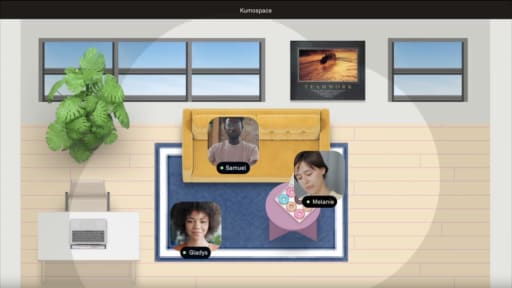
- If you’re coordinating across regions, consider setting your hours to overlap with key teammates. Distributed teams often combine these settings with team-wide norms communicated in tools like Kumospace, where a virtual office layout can mirror who is “in” or “out” during set hours.
Remember that customizing work hours isn’t about rigid rules. It’s about creating realistic expectations so colleagues know when to reach you and when to wait.
Setting and Managing Working Location in Google Calendar
Working hours tell people when you’re available. Working location tells them where you’ll be working, which is especially valuable for hybrid teams deciding between in-person and virtual meetings.
Here’s how to configure your default working location:
- Navigate to Settings > “Working hours & location” (the same panel where you set your hours).
- Below your working hours, you’ll see options to choose a location for each workday. Common options include “Office,” “Home,” “Unspecified,” or a custom office address.
- Select the appropriate location for each day. For example, you might set Monday and Tuesday as “Office” and Wednesday through Friday as “Home.”
- To override your location for a specific day, go to your main calendar view and look for the “Working location” row. Simply click to change that date from “Office” to “Home” or another option.
- For a date range (like a full week working from another city), you can create a new event or adjust your existing working location entries to reflect the temporary change.
This combination of working hours location data helps colleagues in both Google Calendar and Kumospace know whether to book a conference room or set up a Google Meet call instead.
Marking Yourself Out of Office and Showing Status
When you need extended time away, such as for vacation, personal commitments, or a multi-day conference, the Out of office event type handles it more gracefully than blocking time manually.
What Out of Office events do:
- Automatically decline new meeting invitations during the specified time range
- Show your status as unavailable in Gmail (for work or school accounts)
- Allow you to set a custom decline message explaining your absence
How to create an Out of Office event on desktop:
- Click on a date in your calendar where you want to start your out of office time.
- In the event window, select the “Out of office” tab instead of “Event.”
- Set your start and end date and time for the entire period you’ll be unavailable.
- Optionally, customize your decline message to let invitees know when you’ll return.
- Click “Save.”
On mobile:
In the Google Calendar app, tap create (the “+” button), select “Out of office,” set your dates and times, and save. This works on both Android and iOS.
All existing and new meeting requests within that time will be automatically declined, reducing the manual work of rejecting each invite individually.
For remote teams, using out of office events together with your virtual office in Kumospace means people can see both your calendar-based unavailability and your absence from shared virtual rooms, so there is no confusion about whether you’re simply in a meeting or truly away.
Overriding Working Hours for Specific Events

Your working hours create a framework, not a prison. Sometimes you’ll need to schedule a 7:30 AM call with an APAC team or accept a Friday evening event for a special project.
Here’s what you need to know about overriding work hours:
- Working hours don’t prevent you from creating events outside those times. They only warn others when they’re booking you during non-standard hours.
- To schedule a one-off meeting outside your usual hours, simply create a new event at that time. Your default working hours remain unchanged.
- When scheduling these exceptions, add context in the event details so guests understand why you’re meeting outside normal hours. A quick note like “Accommodating Singapore team’s schedule” prevents confusion.
- These specific events won’t alter your default work hours grid in Settings. They appear as regular calendar blocks alongside your working hours framework.
- For recurring meetings that span time zones, consider using tools like Kumospace to coordinate schedules and keep most collaboration inside standard windows while making rare exceptions visible to everyone.
The key is limiting overrides to genuinely necessary situations rather than letting them become the norm, which would defeat the purpose of setting clear working hours in the first place.
Troubleshooting Google Calendar Working Hours
If your working hours aren’t behaving as expected, run through this quick checklist to diagnose common problems.
- “Working hours & location” option not appearing: Verify you’re using a Google Workspace account. Free personal accounts may not have access to this feature. Also confirm your organization’s admin hasn’t disabled it.
- Warnings not showing for colleagues: The person scheduling the meeting needs at least “See free/busy” sharing permission for your calendar to see your working hours. Check your calendar sharing settings under Settings > “Settings for my calendars.”
- Settings changes not appearing: Try using a different browser, clearing your cache, or signing out and back in. Sometimes cached data prevents updates from displaying.
- Colleagues’ working hours look shifted: If calendars appear in different time zones, their working hours may display at unexpected times on your view. Verify both parties have correct time zone settings.
- Working location not syncing: Location data requires the same sharing permissions as working hours. If colleagues can’t see your location, check whether they have adequate calendar access.
- Mobile app limitations: Remember that you cannot edit working hours from the Google Calendar app. You’ll need to access a computer to make changes to your default settings.
Using Working Hours to Improve Teamwork and Focus
Beyond personal productivity, shared working hours create team-wide benefits that compound over time.
- Streamlined meeting scheduling: When everyone’s hours are visible, finding overlapping availability for recurring meetings, daily stand-ups, or planning sessions becomes straightforward. No more polling five people to find a 30-minute slot.
- Virtual office integration: Combine Google Calendar working hours with a virtual office platform like Kumospace so teammates see not just when you’re working, but in which virtual room or floor to find you. This creates presence awareness that mimics the best parts of in-person offices.
- Establish team norms: Agree on no meeting windows, deep-work blocks, and time-zone-friendly ranges based on everyone’s working hours. For example, a team spanning New York and London might protect 9-11 AM EST as focus time while keeping 1-4 PM EST open for collaboration.
- Plan meetings with confidence: When you can see your entire team’s availability at a glance, you spend less time on scheduling logistics and more time on actual work.
- Regular reviews: Revisit your working hours monthly or quarterly. Adjust when your role changes, you move to a different time zone, or team responsibilities shift. Stale working hours create friction rather than reducing it.
Conclusion
Setting your working hours in Google Calendar takes about two minutes but pays dividends every time someone schedules a meeting with you. Instead of fielding requests at 7 AM or negotiating around personal time, you create clear boundaries that colleagues respect often without even realizing they’re doing it.
When you add a virtual office platform like Kumospace to the mix, you create complete visibility into not just when you’re working, but where teammates can find you for quick conversations. Open Google Calendar on desktop, navigate to Settings via the gear icon, and enable working hours to set your default schedule in one step. Customize different days with different hours and use working location to indicate whether you’re at the office or home on any specific day. Combine calendar-based availability with Kumospace to give remote and hybrid teams full context about when and where to connect. Set your working hours today and your future self and your colleagues across every time zone will thank you.
Frequently Asked Questions
Working hours let you define the times you are available so colleagues see when to schedule meetings.
In Settings under Working hours and location, you can customize start and end times for each day individually.
Working location shows where you will be working, helping hybrid teams know whether to meet in person or virtually.
Use Out of office for vacations, personal time, or multi-day events to block time automatically and notify colleagues.
It provides visibility into both when you are working and where you are in virtual rooms, making scheduling and collaboration smoother.