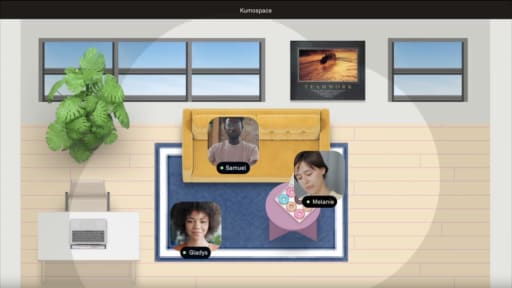
Illustration of remote work scene with virtual meeting participants, used to depict Slack Huddles.

Are Slack Huddles Recorded?

By Sammi Cox

If you’ve ever finished a Slack Huddles call and wondered where the conversation went, you’re not alone. Unlike traditional meetings, huddles are designed for quick, informal collaboration, which raises an important question: are those conversations recorded or saved anywhere? Understanding how Slack handles audio, video, and conversation history is essential for remote teams that rely on huddles for day-to-day work. In this guide, we’ll clarify what gets recorded, what doesn’t, and how to preserve important discussions when it matters.

Key Takeaways

  • Slack does not natively record live Huddles as of 2026, so no audio or video is automatically saved when the huddle ends.
  • Only separate features like audio and video clips (up to five minutes) are recorded inside Slack, not spontaneous Huddles.
  • To record a Slack huddle, you must use manual screen recording tools, a third-party app, or switch to a platform like Kumospace that offers built-in recording feature capabilities.
  • Information shared verbally in huddles is not archived automatically and will be lost unless recorded by an external tool.
  • Always check privacy laws and company policy before recording; many legal jurisdictions require all-party consent for recording conversations.

What Is a Slack Huddle?

Slack Huddles are lightweight, ad-hoc audio calls that let teams connect instantly within channels or direct messages. Launched around 2021, Huddles later expanded to include multi-person video, screen sharing, and emoji reactions.

Common use cases include:

  • Daily stand-ups and quick syncs
  • Unblock calls when async messages aren’t cutting it
  • Brainstorming sessions that pop up organically
  • Customer escalations requiring immediate voice conversation

Huddles are designed to be informal and ephemeral, with spoken content generally lost at the end unless noted manually or captured through AI. This “walk over to someone’s desk” design is precisely why Slack doesn’t automatically record them; it preserves the casual, low-friction nature of these meetings.

Are Slack Huddles Recorded by Default?

The short answer: no. Slack does not currently have a built-in feature to record live huddles, which can hinder capturing important discussions and decisions made during these sessions.

When the huddle ends, only chat messages, shared files, and any clips you created remain in the workspace. Slack does not save audio or video files of huddles; metadata and text-based summaries are retained instead.

This differs from Slack’s clips feature, which lets you record video messages or audio clips (up to five minutes) that persist in channels with built-in transcripts and live captions. Third-party apps can be integrated with Slack to record huddles since Slack lacks this native capability.

If you’ve never set up external recording, rest assured, your past Huddles aren’t secretly stored somewhere. Slack intentionally avoids silently logging voice chats to reduce data retention risks and compliance complexity.

Manual Ways to Record Slack Huddles

Without a record button in Slack, you’ll need to capture Huddles locally using your desktop app or operating system tools.

Built-in options by platform:

Platform

Tool

What It Captures

Mac

QuickTime Player

Screen and system audio

Windows

Xbox Game Bar / Voice Recorder

Screen, microphone, speaker audio

Linux

SimpleScreenRecorder

Screen and audio

Cross-platform

OBS Studio

Highly customizable capture

One basic approach to recording Slack huddles involves using your computer’s built-in audio recording capabilities, such as QuickTime Player for Mac or the Voice Recorder app for Windows. Screen recording software can capture both your screen and system audio during Slack huddles, which is useful when screen sharing is involved.

OBS Studio offers advanced control but has a steeper learning curve. You’ll configure sources for the Slack window, Huddle audio, and any shared screen.

AI-Powered Recording and Note-Taking for Slack Huddles

AI notetakers can automatically capture huddle audio and generate transcripts, summaries, and next steps without manual effort.

Users can enable AI Notes on paid Slack plans to generate a text transcript and summary of the conversation. Additionally, Slack enables users to create a Slack Canvas containing attendees, discussion topics, and action items at the end of a huddle if AI Notes are activated.

Common capabilities include:

  • Speaker detection and full transcript generation
  • AI summary with key points and bullet-point recaps
  • Searchable archives for future reference
  • Integration with tools like Salesforce, HubSpot, or Jira

Some tools run in the background on your computer to record system audio, while others attempt to join calls as a bot joins a participant. Note that bot-based approaches work better on other platforms like Zoom or Google Meet than on Huddles.

If your team outgrows Slack Huddles and wants always-on spaces with built-in huddle recording and recap workflows, consider hosting key discussions in Kumospace instead of relying on ad-hoc workarounds.

Using Third-Party and CRM-Native Apps

Integrating third-party apps designed to capture and record conversations within Slack can provide a solution for recording huddles, although functionality may vary between apps.

Popular third-party tools for recording Slack huddles include Loom, OBS Studio, and Wudpecker, each offering different features and user experiences. When evaluating apps in Slack’s App Directory, confirm they explicitly support live huddle recording, not just message sharing or clips.

Salesforce-native applications can provide seamless integration for recording Slack huddles, allowing automatic saving of recordings and transcripts within the Salesforce CRM system. Imagine a sales org recording key Huddles about large deals so discovery insights and revenue forecasts flow directly into their crm system.

Setup considerations:

  • May require admin permissions on enterprise grid workspaces
  • Data retention policies need documentation
  • Security reviews essential for regulated industries like finance or healthcare

Kumospace for Recorded, Structured Team Conversations

Kumospace offers a more reliable alternative for teams that need conversations to be both spontaneous and preserved. Unlike Slack Huddles, which are intentionally unrecorded and ephemeral, Kumospace provides built-in recording capabilities so important discussions, decisions, and context don’t disappear when the call ends. This is especially valuable for teams handling client conversations, cross-functional planning, or anything tied to revenue and execution.

Inside its virtual office environment, teams can meet in persistent rooms that mirror a real workspace rather than jumping between temporary calls. With spatial audio, conversations feel more natural and flexible. You can move between groups, pull someone aside, or join a discussion without disrupting others. When something important comes up, recording can be enabled seamlessly, ensuring that key insights are captured without requiring external tools or awkward workflows.

For companies that rely on Slack but need more structure and accountability in meetings, Kumospace fills the gap. It combines the speed and informality of huddles with the reliability of recorded sessions, making it easier to revisit decisions, onboard new team members, and maintain alignment over time. Instead of losing valuable conversations, teams get a system where collaboration is both fluid and fully documented.

Slack Huddles vs. Other Meeting Platforms

Feature

Slack Huddles

Zoom/Meet/Teams

Kumospace

Native recording

No

Yes

Yes

Recording notification

No

Yes

Yes

Speed to start

Seconds

Minutes

Seconds

Persistent rooms

No

Limited

Yes

Transcript/summaries

Via AI Notes only

Built-in

Built-in

Best Practices and Legal Considerations When Recording Huddles

Recording voice conversations can trigger legal obligations. Legal jurisdictions may require all-party consent for recording conversations, which is essential when using external recording tools.

Critical steps before you capture anything:

  1. Always obtain consent from all huddle participants before recording to protect privacy rights and comply with legal regulations
  2. Participants should be informed if external recording tools are being used, as there is no automatic notification feature in Slack for this
  3. Add a verbal notice at the start, or drop a written message in the channel or direct message
  4. Document consent in your meeting notes

Technical hygiene:

  • Good audio quality is crucial for effective recordings; encourage participants to use headsets and minimize background noise to enhance clarity
  • Test your microphone and audio sources before critical calls
  • Use a quiet environment to improve transcription accuracy

Storage and access:

  • Apply retention policies (e.g., 30-day auto-delete for non-critical recordings)
  • Restrict access to sensitive recordings per company policy
  • Store in designated folders with clear naming conventions

Alternatives to Recording: Using Slack Clips and Written Notes

If full huddle recording feels heavy-handed, lighter alternatives exist.

Slack Clips:

Create audio or video clips up to five minutes to share quick recaps after a Huddle. These include built-in transcripts and captions, making them easy to listen to or watch later.

Written summaries:

Have the meeting “owner” post a short written summary immediately after, tagging owners and due dates for action items.

Benefits of these alternatives:

  • Easier to skim than long recordings
  • Lower storage impact
  • Fewer privacy concerns
  • Content is automatically saved in the channel

Teams should decide when a quick summary captures the key points versus when they truly need a full-length recording with searchable transcripts.


Summary

Slack Huddles are designed for quick, informal conversations, and by default, they are not recorded. When a huddle ends, no audio or video is saved; only chat messages, shared files, and optional clips remain. This makes huddles lightweight and low-friction, but also means important discussions can be lost if not captured elsewhere.

If you need a record, you’ll have to use external tools like screen recorders or AI note-taking apps. Slack does offer limited alternatives, such as short audio or video clips and AI-generated summaries, but these are separate features and don’t automatically capture full conversations.

For teams that need reliable records, it’s important to plan: use third-party tools, switch to platforms with built-in recording, or document key takeaways manually. Always get participant consent before recording, as privacy laws and company policies often require it.

Frequently Asked Questions

Transform the way your team works from anywhere.

A virtual office in Kumospace lets teams thrive together by doing their best work no matter where they are geographically.

Headshot for Sammi Cox
Sammi Cox

Sammi Cox is a content marketing manager with a background in SEO and a degree in Journalism from Cal State Long Beach. She’s passionate about creating content that connects and ranks. Based in San Diego, she loves hiking, beach days, and yoga.

Transform the way your team works.