A workflow diagram is a visual representation of a process that shows how work moves from start to finish. Each step in the process is represented by a shape, and the shapes are connected by arrows that show the sequence and direction of flow. Decision points, where the process branches based on a yes or no condition, are represented by diamonds. Rectangles represent action steps. Ovals or rounded rectangles represent the start and end points.
The format has roots in flowcharting conventions that go back decades, but the purpose hasn't changed: make a process understandable at a glance so that everyone involved knows what happens, in what order, and who is responsible for each step. A workflow diagram removes ambiguity by forcing the team to agree on what the process actually is, which is often different from what any individual assumes it is.
Workflow diagrams serve different purposes depending on the context. A high-level diagram might show the five major phases of a product launch without detailing every subtask within each phase. A detailed diagram might map every step in a bug triage process, including the criteria for severity classification, the escalation path for critical bugs, and the handoff between QA and engineering. The right level of detail depends on who the diagram is for and what decisions it needs to support.

Creating a workflow diagram is a structured process that works best when done collaboratively with the people who actually execute the work. Here's how to approach it.
Identify the Process Boundaries
Start by defining where the workflow begins and where it ends. Every workflow has a trigger, the event or action that sets the process in motion, and an endpoint, the condition that signals the process is complete.
For a content approval workflow, the trigger might be "writer submits first draft," and the endpoint might be "published content is live on the website." For a bug fix workflow, the trigger might be "QA reports a defect," and the endpoint might be "fix deployed to production and verified." Being precise about these boundaries prevents the diagram from expanding endlessly into adjacent processes.
List Every Step Between Start and Finish
Before arranging anything visually, write out every step in the process as a simple list. Include actions ("design team creates mockup"), decisions ("does the client approve the mockup?"), and handoffs ("mockup is sent to engineering for implementation"). Don't worry about sequencing yet. The goal is to capture everything that happens without filtering or organizing prematurely.
Talk to the people who do the work, not just the people who manage it. Managers often have an idealized view of how a process works. The people executing it know where the unofficial workarounds, bottlenecks, and pain points actually live.
Identify Decision Points
Go through your list and flag every step where the process branches based on a condition. These are your decision points, and they're the most important elements in the diagram because they determine which path the work takes. "Does the proposal meet budget requirements?" leads to either "proceed to executive review" or "revise scope and resubmit." Each branch needs a clearly labeled path for yes and no outcomes.
Arrange the Steps in Sequence
Now organize the steps into a logical flow. Place the trigger at the top or left side of the diagram and the endpoint at the bottom or right side. Arrange action steps in sequence with arrows connecting them. Insert decision diamonds at the points where the process branches and connect each path to its respective downstream steps.
Before building the diagram, make sure everyone understands the symbols and notation being used. Standard flowchart conventions help readers quickly distinguish between actions, decisions, inputs, outputs, and start or end points, reducing confusion as the workflow becomes more complex.
Look for parallel paths where two or more activities can happen simultaneously. In a product launch workflow, engineering development and marketing collateral creation might run in parallel before converging at a launch readiness review. Representing parallel tracks accurately reflects how work actually moves rather than forcing everything into a single linear sequence.
Assign Ownership
Label each step with the person or team responsible for completing it. This is what transforms a process diagram into a project management workflow diagram. When ownership is visible for every step, the team can see exactly who needs to act at each stage and where accountability sits when something stalls.
Use swim lanes if the workflow involves multiple teams. Swim lanes divide the diagram into horizontal or vertical bands, with each band representing a team or role. Steps placed within a swim lane belong to that team. This format makes handoffs between teams visually obvious, which is exactly where most process breakdowns occur.
Validate With the Team
Share the draft diagram with everyone involved in the process and walk through it together. Ask whether the sequence matches reality, whether any steps are missing, and whether the decision criteria are accurately represented. This review almost always surfaces gaps, because people who work different parts of the process bring context that no single person has.
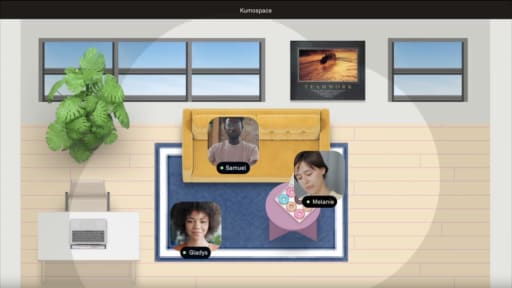
For distributed teams, this validation step is where real-time collaboration makes the biggest difference. Walking through a workflow diagram over a screen share with live conversation catches nuances that async comments on a shared document tend to miss. Teams working in Kumospace can pull up the diagram, walk through it step by step, and make edits in the moment as the group identifies gaps and edge cases. That kind of rapid, interactive review produces a more accurate diagram in a single session than multiple rounds of asynchronous feedback.

A static workflow diagram tells you how a process should work. A Monday workflow brings that diagram to life by automating the steps, assignments, and notifications within the platform so the process runs without manual oversight at every stage.
Monday.com's workflow automation is built around a simple structure: "when this happens, do that." These automations, called recipes, connect triggers to actions. When a status changes to "ready for review," automatically assign the reviewer and send them a notification. When a due date arrives, move the item to a "past due" group and alert the project manager. When all subtasks in a group are marked complete, update the parent item's status to "done."
Translating Your Diagram Into Monday Automations
Start with the decision points and handoffs in your workflow diagram, because those are the moments where automation eliminates the most friction. Every decision point that has a clear, binary condition can potentially be automated. "If status equals approved, move to next phase" is a straightforward Monday workflow recipe. "If status equals rejected, assign back to the original owner with a comment requesting revisions" is another.
Handoffs between teams are especially valuable to automate because they're the steps most likely to be delayed by someone not realizing it's their turn to act. A Monday workflow that automatically notifies the next person in the chain and updates the item's status removes the lag between one person finishing their step and the next person starting theirs.
Common Monday Workflow Automations for Project Teams
Status-based assignments streamline review and approval workflows. For example, when a task changes to "needs design review," it can automatically be assigned to the design lead with a due date.
Due date notifications help prevent missed deadlines by reminding task owners, alerting project managers when deadlines arrive, and escalating overdue work when necessary.
Dependency automations keep work moving by notifying the next owner when a prerequisite task is completed. For phase-based projects, automations can also detect when an entire phase is finished and notify stakeholders that the next stage is ready to begin.
When to Automate and When Not To
Not every step in your workflow diagram should be automated. Automation works best for repetitive, rule-based actions where the conditions are clear and the outcome is predictable. It works poorly for steps that require judgment, nuance, or context that changes from instance to instance.
A step like "determine whether the feature is ready for beta release" involves judgment that varies based on the specific feature, the current state of the codebase, and the team's confidence level. Automating that decision would either oversimplify it or create a false sense of completion. The better approach is to automate the notification that the preceding steps are done and the item is ready for someone to make that judgment call.

Even well-intentioned diagramming efforts can produce outputs that don't serve the team if they fall into predictable traps.
Mapping the ideal process instead of the actual process is the most frequent mistake. Teams often diagram how they wish the workflow worked rather than how it currently works. This produces a diagram that looks clean but doesn't reflect reality, which means the bottlenecks, workarounds, and inefficiencies that need to be fixed stay hidden. Always start by documenting the current state. Then create a second diagram that shows the improved target state. Comparing the two makes the gap visible and gives the team a concrete improvement plan.
Including too much detail makes the diagram overwhelming and discourages people from using it. A workflow diagram that tries to capture every possible edge case and exception ends up looking more like a circuit board than a process map. Keep the main diagram focused on the standard path, and document exceptions and edge cases in a supporting document or as annotations.
Skipping the ownership layer produces a diagram that shows what happens, but not who does it. Without ownership labels, the diagram describes a process in the abstract rather than assigning accountability. Every step should have a clear owner, and every handoff should specify who is passing and who is receiving.
Building the diagram alone and presenting it to the team guarantees that the diagram will be incomplete and that the team won't feel ownership over it. The people who execute the process have knowledge about how it actually works that no single person can capture independently. Collaborative creation produces better diagrams and stronger buy-in.