Windows Task Manager has been a core troubleshooting tool since Windows NT 3.1 launched in 1993. What began as a basic process viewer is now a full system monitor, startup manager, and performance tool. When your computer slows down, an app freezes, or your battery drains faster than expected, Task Manager is often the quickest way to understand what’s happening.
This guide focuses on Windows 10 and Windows 11 as of 2026, while noting shortcuts that still work on older versions. We’ll cover how to open Task Manager quickly, what each tab does, and practical ways to use it, from closing unresponsive apps to tracking CPU and memory usage during demanding tasks like video calls or heavy browser sessions.
Key Takeaways
- Ctrl + Shift + Esc is the fastest way to open Task Manager on Windows 10 and Windows 11, no intermediate screens, just instant access.
- Ctrl + Alt + Delete remains the most reliable shortcut when your system is badly frozen, working consistently across Windows 7, 8.1, 10, and 11 in 2026.
- You can access Task Manager from the Start menu, Windows Search, Win + X power user menu, Run dialog (taskmgr), and command prompt with simple step-by-step methods.
- Understanding Task Manager tabs, Processes, Performance, Startup, Users, Details, and Services helps you make informed decisions instead of randomly ending tasks.
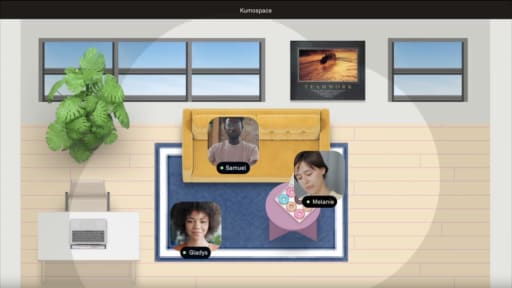
- Remote and hybrid teams can share Task Manager screens in tools like Kumospace to troubleshoot performance problems collaboratively during video calls.
Quick Read: Fastest Ways to Open Task Manager
Need to click Task Manager right now? Here are your fastest options:
|
Method |
Action |
|
Ctrl + Shift + Esc |
Opens Task Manager directly, no menus, no waiting |
|
Ctrl + Alt + Delete |
Open the secure screen, then select Task Manager |
|
Right-click taskbar |
On Windows 11, choose Task Manager from the menu |
|
Win + X |
Opens Power User Menu, press T for Task Manager |
|
Win + R → taskmgr |
Type the command and hit enter |
These shortcuts are safe to try anytime and do not change system settings. The sections below provide detailed steps and context for each method.
What Is Task Manager and When Should You Use It?

Task Manager is the built-in Windows utility for viewing and controlling running apps, background processes, and the overall performance of your PC. It displays real-time data on CPU, memory, disk, GPU, and network usage per process.
Open Task Manager when you notice:
- An app freezes and won’t respond to clicks
- Your computer’s fans run loudly without an obvious cause
- Your laptop battery drains faster than expected
- Video calls in Kumospace or Teams become choppy
- Windows starts noticeably slower than usual
Beyond monitoring, Task Manager lets you manage programs that launch at startup, log off other user sessions, and identify which apps recently consumed significant resources through app history.
Task Manager Keyboard Shortcuts (Windows 7–11)
Keyboard shortcuts are the fastest method to reach Task Manager, especially when your mouse becomes unresponsive during a system hang. All shortcuts below work on standard Windows installations without extra software.
Ctrl + Shift + Esc – Fastest Direct Shortcut
This keyboard shortcut opens Task Manager instantly without any intermediate screen. Hold Ctrl and Shift, tap Esc once, then release all keys. Task Manager appears immediately.
This works on Windows 7, 8.1, 10, and 11. Use this shortcut when your mouse cursor still moves but foreground apps stop responding, like a browser freeze during heavy JavaScript rendering.
Ctrl + Alt + Delete – Most Reliable When System Is Stuck
Pressing Ctrl + Alt + Delete opens a secure system screen first, where you then select Task Manager. This method is handled by the secure desktop, which operates at the kernel level and remains responsive even when user-mode applications freeze completely.
Steps:
- Hold Ctrl and Alt
- Press Delete once
- Use the arrow keys or the mouse to select Task Manager from the menu
This works on all supported Windows versions and is your best option for serious hangs or near-frozen states caused by driver conflicts.
Windows Key + X – Power User Menu Access
Pressing Windows key + X opens the Power User Menu (also called Quick Link menu) in Windows 10 and Windows 11. From here, press T or click Task Manager.
This convenient option provides quick access alongside other system tools like Device Manager, Disk Management, and Terminal. Power users switching between multiple administrative tools will find this menu invaluable.
Windows Key + R – Using Run Dialog (taskmgr)
The Run dialog can launch system tools by name. Press Windows key + R, type taskmgr, and press Enter. This works on Windows 7 through Windows 11.
This method suits users comfortable with Run commands or those providing remote support sessions through platforms like Kumospace. For advanced users, taskmgr.exe lives in C:\Windows\System32\ if you want to create custom desktop shortcuts.
Opening Task Manager from Menus, Search, and Files
Mouse-friendly methods work well for touchscreens, tablets, and users who prefer visual navigation over memorizing shortcuts.
From the Windows 10 & 11 Taskbar
On modern Windows 11 builds (post-2022), right-click an empty area of the taskbar and choose Task Manager from the context menu. This is a beginner-friendly method requiring no keyboard usage.
Note that in tablet mode or full-screen apps, the taskbar may be hidden, requiring an alternative approach.
From the Start Menu
Click the Start button to open the Start menu:
- Windows 10: Navigate to All Apps > Windows System folder > Task Manager
- Windows 11: Type “Task Manager” directly in the search field, or find it under All Apps
Both methods work reliably, though search is generally faster on Windows 11.
Using Windows Search (Win + S)
Windows Search is often the easiest discovery method for new users. Press Windows key + S or click the search icon, type “task manager,” and press Enter. The familiar gear-and-chart icon appears in results.
From the Run Command or Command Line
Advanced users can start Task Manager from the command prompt, Windows Terminal, or PowerShell:
- Open your preferred command-line tool
- Type taskmgr
- Press enter
This works even in elevated Administrator consoles. You can also run the executable directly at C:\Windows\System32\taskmgr.exe
Task Manager Tabs Overview: What Each Tab Shows

Modern Task Manager on Windows 11 (build 22H2 and later) uses a sidebar interface with multiple sections. Understanding these tabs helps you diagnose problems effectively.
Processes Tab
The Processes tab shows all running processes grouped into Apps, Background Processes, and Windows Processes. Sort by CPU, Memory, Disk, GPU, or Network columns to identify resource hogs.
Right-click any item to End task, open file location, or search online for unfamiliar programs. This tab is where you’ll spend most of your time spotting a browser process using 60-80% CPU or a cloud sync tool saturating your disk.
Performance Tab
The Performance tab displays live graphs of CPU, Memory, Disk, Wi-Fi/Ethernet, and GPU usage over approximately 60 seconds. This proves invaluable during high-demand activities like video calls in Kumospace with many participants.
Hovering over each graph reveals details like CPU base speed, logical processors, available RAM, and network link speed. Use this tab to determine whether a 100% disk spike corresponds to an antivirus scan or Windows Update.
Startup Tab
The Startup tab lists apps that launch automatically when Windows starts, along with impact ratings (Low, Medium, High). Right-click on unnecessary items and choose Disable to speed up boot time. Disabling high-impact items can reduce startup times by 20-50%.
Make sure to avoid disabling critical security software, drivers, or unknown system entries without researching them first. Use the Search Online option when in doubt.
Users, Details, and Services Tabs
- Users tab: Shows resource usage per logged-in account, useful for shared computers or Remote Desktop scenarios
- Details tab: Provides technical process-level data, including PID, status, and priority for advanced troubleshooting
- Services tab: Lists Windows services with Start/Stop controls, linking to the full Services.msc console
Average home users mainly use the Processes and Performance tabs, while IT professionals rely on Details and Services for deeper diagnostics.
Common Task Manager Use Cases and Practical Tips
Task Manager is a quick, built-in tool for diagnosing performance issues, closing unresponsive apps, and optimizing system resources. Knowing a few practical use cases can help you troubleshoot problems and keep your system running smoothly.
Close a frozen game: Open Task Manager with Ctrl + Shift + Esc, locate the game in the Processes tab, verify high GPU usage confirming it’s unresponsive, right click, and select End task.
Find the app using all your RAM: Sort the Processes tab by Memory column. Expand multi-process apps like Chrome to identify specific tabs consuming 2+ GB.
Improve startup time: Visit the Startup tab, disable High-impact items like updaters for rarely-used apps, and restart to test the improvement.
Diagnose video call issues: During a Kumospace meeting with audio glitches, check the Performance tab for CPU spikes from video decoding or network bottlenecks showing 80% Ethernet utilization. Suspend unnecessary background syncs to free resources.
Tips for Using Task Manager Safely and Effectively
Ending the wrong process can cause data loss in unsaved applications. Follow these best practices:
- Only end tasks you recognize and launched yourself
- Avoid terminating core Windows processes (csrss.exe, winlogon.exe)
- Create a restore point before making major changes
- Use Search Online to identify unknown items before ending them
- Wait 10-30 seconds for apps to recover before forcing termination
- Switch between “Fewer details” and “More details” views using Alt + D
Most users don’t need Task Manager running constantly, but you can pin it to the taskbar for one-click access during troubleshooting sessions.
Summary
Task Manager is a built-in Windows tool for monitoring system performance, managing running apps, and troubleshooting issues like freezes, slowdowns, or high resource usage. Originally introduced in early Windows versions, it has evolved into a full system monitor that helps users quickly diagnose problems and optimize performance on Windows 10 and 11.
You can open Task Manager instantly using shortcuts like Ctrl + Shift + Esc (fastest) or Ctrl + Alt + Delete (most reliable for frozen systems), as well as through the taskbar, Start menu, search, or the Run command (taskmgr). Once open, key tabs like Processes, Performance, and Startup help you identify resource-heavy apps, track CPU and memory usage, and control which programs launch at startup.
In practice, Task Manager is most useful for closing unresponsive apps, spotting performance bottlenecks, and improving startup speed. Used carefully, avoiding critical system processes, it’s a simple but powerful tool for keeping your computer running smoothly and diagnosing issues in real time.
Frequently Asked Questions
It’s generally safe to end clearly labeled apps you opened yourself, a frozen browser, or an unresponsive game. However, ending unknown or system processes risks crashes or blue screens. Avoid stopping items labeled as Windows processes, drivers, or security tools. Search online for unfamiliar names before taking action, and remember that ending a process loses any unsaved work in that app.
Different tools sample resource usage at different intervals and average data differently. Task Manager uses approximately 1-second sampling windows, while other utilities may poll instantaneously. For typical troubleshooting, spotting spikes and identifying heavy apps, Task Manager’s values are accurate enough, with variances of only 5-10%.
Task Manager remembers your last view (Fewer details vs More details) and active tab between sessions. Pin it to the taskbar or Start for quick access. You can also create a shortcut to taskmgr.exe and assign a custom keyboard shortcut through its properties. The Alt + D shortcut toggles detail levels instantly.
The interface remains identical, but laptops display additional power-related information like estimated battery impact in the Startup tab and power usage trends. Portable device users often check Task Manager more frequently to find battery-hungry apps or runaway background processes draining the charge.
During remote sessions, a team member can share their screen in Kumospace and open Task Manager to display CPU, RAM, and network usage while an issue occurs. IT colleagues can then guide them in real time on which running processes to close or startup items to disable, without needing physical access to the device. This combination accelerates resolution for distributed teams facing performance problems.