A well-designed remote work setup does more than make your workspace look good. The right combination of furniture, technology, and organization can improve productivity, reduce physical strain, and make long workdays more comfortable.
Whether you're building a home office from scratch or upgrading your current space, small improvements can have a big impact. This guide covers the essential equipment, ergonomic best practices, and collaboration tools you need to create an effective remote work setup.
Key Takeaways
- A modern remote work setup starts with ergonomic basics: a standing desk, a supportive office chair, and the correct screen height with a laptop or monitor stand.
- Remote workers should treat their home office like a real office, with clear zones, good lighting (including a focused desk lamp), and reliable Wi-Fi.
- Small upgrades like a mechanical keyboard, noise-canceling headphones, and cable organizers can make all the difference in daily comfort and focus.
- Frequent travelers and digital nomads need a mobile office setup with a travel adapter, USB-C hub, and compact stands to recreate their home office ergonomics on the road.
Why Your Remote Work Setup Matters
In 2020, millions of knowledge workers scrambled to set up makeshift offices on their dinner table or bedroom desk. Six years later, that "temporary" arrangement has become permanent. As of March 2026, 22.6% of U.S. workers teleworked or worked at home for pay. Among remote-capable workers, Gallup finds 52% hybrid and 27% fully remote.
A thoughtful home office setup affects far more than aesthetics. When you spend 40+ hours per week in the same space, your desk, chair, lighting, and tech directly shape your productivity, physical health, and work-life balance. Common pain points include neck pain from hunching over a laptop screen, eye strain from poor lighting, and burnout from working in cluttered or shared spaces.
An effective remote work setup includes ergonomic furniture, reliable technology, lighting, practical accessories, and virtual collaboration tools. You'll get practical, practical, concrete examples (standing desks, laptop stands, travel adapters) so you can upgrade step by step instead of overhauling everything at once.
Designing the Physical Space: Choosing Your Home Office Location
Key elements of a remote work setup include a dedicated workspace and boundaries between work and home. Even if you only have a corner of a room, mentally separating "office" from "home" matters.
Here's how common locations compare for remote workers:
|
Location |
Pros |
Cons |
|
Dedicated room with door |
Privacy, noise control, strong boundary |
Requires extra space, can feel isolated |
|
Bedroom corner |
Low cost, personal comfort |
Blurs sleep/work lines, distracting |
|
Dining table |
Flexible, often spacious |
Poor ergonomics, constant setup/teardown |
|
Nook near a window |
Natural light, mood boost |
Potential glare, less privacy |
Access to natural light is widely associated with better mood and alertness in work environments. Place your desk perpendicular to a window to avoid screen glare while still benefiting from daylight. If your workspace is in a shared area, use rolling carts or storage boxes to "pack away" work at the end of the day.
Create a separate workspace to help switch off from work. Small physical boundaries, such as a room divider, bookshelf, or rug, define the zone visually. Implementing clear boundaries with household members minimizes interruptions during working hours. End-of-day rituals like closing a laptop and turning off a desk lamp signal that work is done.
Ergonomic Foundations: Desk, Chair, and Screen Height
A proper ergonomic setup reduces neck, back, and wrist strain for full-time remote workers. This is where your budget should go first.
Desk options: A standing desk can improve posture and reduce back pain. You have a few options: a fully electric standing desk with programmable presets, a manual-crank model at a lower price, or a desktop standing converter for tight budgets. A 2026 randomized trial found that using a fixed 30-minute sitting-to-15-minute standing ratio significantly reduced lower back pain and improved concentration. Using an adjustable desk allows alternating between sitting and standing to promote better circulation. Adjustable sit-stand desks can minimize back pain when used consistently.
Chair: An ergonomic chair reduces fatigue during long work hours far better than a kitchen or dining chair. Look for adjustable seat height, lumbar support, breathable mesh, and tilt control.
Screen height: A laptop stand promotes better posture by raising your screen to eye level, reducing strain on your neck and upper back. Pair it with an external wireless keyboard and wireless mouse so your arms are bent at about 90 degrees when typing. This keeps wrists neutral and shoulders relaxed.
Add an anti-fatigue mat if you stand several hours per day, and take brief movement breaks at least every 30 minutes, even within longer focus blocks. A good posture routine is more about movement than any single position.
Core Tech: From Laptops to Monitors and Input Devices
Working remotely doesn't require the most expensive equipment, but the right essentials help you feel productive every day. Most remote workers today favor a laptop docked to one or two external monitors via a docking station, rather than a dedicated desktop. Desktops still win on raw power, but portability has tilted the balance.
A second monitor boosts productivity and multitasking. In fact, a dual monitor setup can boost productivity by 40%. Using multiple screens reduces time spent switching between tabs, and multiple screens allow for easier document comparison and multitasking. Using an extra screen can help keep your workspace organized. A second screen reduces neck strain, since you're looking forward rather than hunching over a single small display. A monitor stand can free up desk space underneath. If you're mobile, a portable monitor is a smart addition: a portable screen can connect via USB-C, giving you a second screen anywhere.
Need to connect to multiple devices? A USB-C hub allows connection to multiple devices: look for one with HDMI, Ethernet, USB-A ports, and SD card slots. Whether you use a MacBook Pro or a Windows laptop, a hub prevents repeated plugging and unplugging.
Lighting, Comfort, and Atmosphere in Your Home Office
Lighting and small comfort upgrades influence energy, focus, and how professional you look on video calls.
Desk lamps can reduce eye strain during work hours. Use a desk lamp with adjustable brightness and color temperature: cooler light (~5000K) for daytime focus, warmer tones (~3000K) for evenings. A desk lamp with adjustable brightness and color temperature reduces eye strain far better than relying on overhead fixtures alone. Add warm, indirect lighting behind your monitor to avoid harsh screen contrast. Positioning monitors to avoid glare is important for reducing eye strain, so angle your screen away from direct light sources.
Comfort add-ons that justify the spend:
- Footrest if your feet don't comfortably rest flat on the floor
- Wrist rests for keyboard and mouse
- Seat cushion to extend the life of an older office chair
- Small desk fan or space heater depending on the season
Encourage fresh air by cracking a window during breaks. Add personality with plants, a framed print, or bright colors on a small display shelf behind your desk. Keep a water bottle and healthy snacks within reach to stay hydrated and fueled.
Connectivity and Power: Wi-Fi, Adapters, and Backups
Reliable Wi-Fi is critical for effective remote work and may include mesh networks for coverage. If your home is larger than ~1,200 sq ft or has thick walls, a mesh system with Ethernet backhaul outperforms a single router for handling multiple devices and large files like video recordings.
Power essentials:
- Surge-protected strip mounted under or behind the desk
- A single high-wattage USB-C charger (65W-100W) to replace several bricks, since it can charge your laptop, phone, and headset from one unit
- A simple UPS for areas with frequent power blips
- Regular cloud backups and an external hard drive for data resilience
For hybrid workers, a travel adapter and multi-port charger mean you can plug in at any satellite office, client space, or coworking desk without hunting for outlets. Battery life matters when outlets are scarce, so choose a laptop with at least 8-10 hours of rated endurance.
Virtual Collaboration: Pairing Your Home Office with Kumospace
A productive home office isn't just about your desk and equipment. It also depends on how easily you can collaborate with your team. While video calls work for scheduled meetings, they rarely recreate the spontaneous conversations that happen in a physical office.
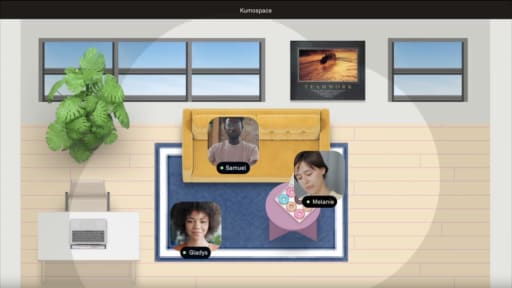
Kumospace complements your remote workspace with a virtual office where teammates can see who's available, move between persistent rooms, and start natural conversations using spatial audio, without scheduling another meeting. Features like screen sharing, whiteboards, recording, and guest access make it useful for daily standups, brainstorming sessions, and informal check-ins that keep distributed teams connected.
To get the best experience, pair Kumospace with a quality webcam positioned at eye level, a noise-canceling headset, and good lighting. Together, your physical home office and virtual workspace create a more comfortable, collaborative environment that supports both focused work and real-time teamwork.
Daily Routines and Habits to Get the Most from Your Setup
Gear alone isn't enough. Consistent routines make your WFH setup truly productive.
Start-of-day ritual: Power on your computer, open your team's collaboration tools, adjust the desk to your preferred height, and review a written task list.
During the day: Use time-boxing with 25-50-minute focus blocks followed by 5-10-minute breaks. Taking regular breaks can maintain focus and prevent fatigue throughout the workday. During breaks, change posture, stretch, hydrate from your water bottle, and follow the 20/20/20 rule (every 20 minutes, look 20 feet away for 20 seconds). Setting consistent working hours helps in mentally disconnecting from work. Establish a strict schedule for work hours so you and your household know when you're available.
End-of-day habits: Incorporate end-of-day rituals to signal work is done. Close work apps, shut down the laptop, turn off the desk lamp, and physically leave your dedicated workspace. Disable notifications after work hours to maintain boundaries.
Summary
A productive remote workspace combines ergonomic furniture, reliable technology, and intentional organization to improve focus, comfort, and long-term well-being. Creating a dedicated work area, optimizing your desk setup, and investing in essentials like proper lighting, external peripherals, and stable internet can reduce physical strain while helping maintain clear boundaries between work and personal life.
Beyond the physical setup, effective remote work depends on healthy routines and seamless collaboration. Consistent work hours, regular breaks, and end-of-day rituals support productivity and work-life balance, while virtual collaboration platforms like Kumospace help remote teams stay connected through more natural communication and teamwork.
Frequently Asked Questions
A starter setup-basic desk (ergonomic office chair, laptop stand, external keyboard and mouse, and a simple desk lamp) can often be achieved in the $400-$800 range if you already own a laptop. Higher budgets ($1,000-$2,000) allow for an electric standing desk, a quality ergonomic chair, two monitors or a large curved display, and premium peripherals like a mechanical keyboard and noise-canceling headphones. Prioritize chair, desk height, and screen position first, then gradually upgrade tech accessories over several months rather than buying everything at once.
A standing desk isn't mandatory, but regularly changing posture is very important for long-term comfort and health. Budget alternatives include using a laptop stand on a kitchen counter for short standing sessions, or adding a riser platform on top of a regular desk. If you sit all day, start with short standing intervals of 10-20 minutes a few times per day and gradually increase.
Position your main monitor or laptop so the camera is roughly at eye level with a clean, uncluttered background behind you. A desk lamp or ring light placed slightly above and behind the camera creates even, front-facing light without harsh shadows. Using platforms like Kumospace can standardize meeting spaces virtually, but the physical basic (camera height, lighting, and audio) are still key to looking and sounding professional.
A mechanical keyboard uses individual switches under each key, offering more precise feedback, longer lifespan, and customizable feel compared to typical membrane keyboards. They can be louder, but quieter switch types and O-rings make them suitable for shared homes or open coworking spaces. People who type for several hours a day in their room often find mechanical keyboards more comfortable and satisfying once they adjust to the feel.
Choose a consistent spot, such as a corner of the living room or bedroom, and define it visually with a rug or small bookshelf so it feels like a dedicated workspace. Compact furniture like a narrow standing desk, fold-down wall desk, or rolling cart lets you store equipment when not in use. Use headphones and visual cues (a desk lamp turned on) to signal "focus time" to family or housemates when a door isn't available.