Illustration of person interacting with digital calendar on computer, symbolizing how to schedule emails in Gmail.

How to Schedule an Email in Gmail (Step by Step on Any Device)

By Sammi Cox

Writing an email at the right moment and sending it at the right moment are two different things. A detailed project brief drafted during a late-night work session shouldn't land in your team's inboxes at 1 AM, and a pitch to a client in London shouldn't arrive while they're asleep. Gmail's built-in scheduling feature solves this by letting you pick exactly when your message gets delivered, and it works across desktop, the Gmail mobile app, and Google Workspace accounts without any add-ons or extensions.

If you've been wondering whether you can schedule an email in Gmail, the answer is yes, and the process takes about three extra seconds. This guide covers how to do it on every platform, how to manage or cancel scheduled messages after the fact, and how to use email scheduling as part of a broader communication strategy that respects your team's time and attention.

Key Takeaways

  • Gmail lets you schedule emails for later delivery on desktop, iOS, and Android using the dropdown arrow next to the send button.
  • Scheduled emails are stored in a dedicated "Scheduled" folder in your Gmail sidebar, where you can edit, reschedule, or cancel them before the send time.
  • Gmail handles scheduled sends server-side, so your browser or app doesn't need to be open at the delivery time.
  • Scheduling works identically for personal Gmail accounts and Google Workspace business accounts, with no additional setup required.
  • For distributed teams, pairing Gmail's schedule email feature with a virtual office platform like Kumospace creates a communication rhythm where async messages and real-time conversations each happen at the right moment.

Why Email Scheduling in Gmail Matters for Teams

Email scheduling sounds like a convenience feature, and it is, but it also shapes team culture in ways that aren't immediately obvious. When a project manager sends a detailed status update at 11:30 PM, the content might be perfectly fine, but the timestamp sends an unspoken message about expectations. Team members who receive late-night emails from leadership start to feel pressured to be available around the clock, even if no one explicitly asks them to.

Scheduling that same email for 8:45 AM the next morning communicates the same information without the cultural side effect. Over weeks and months, this small habit compounds into a healthier team dynamic where people trust that their off-hours will be respected.

Beyond boundary-setting and email scheduling, Gmail users rely on it for help with practical coordination challenges. Engineering teams working across time zones can queue up code review requests and deployment summaries to arrive at the start of their colleagues' workday. Marketing teams can stage campaign launch communications so that external partners, internal stakeholders, and media contacts all receive updates within the same narrow window. Project managers can batch their weekly communication during a single focused session and stagger delivery times for maximum visibility.

How to Schedule an Email in Gmail on Desktop

Scheduling on Gmail's desktop web interface is straightforward and doesn't require any settings changes or feature activation. It's available to every Gmail user by default.

Open Gmail in your browser and click "Compose" to start a new email. Write your message, add recipients, and fill in the subject line as you normally would. When you're ready to schedule rather than send immediately, look for the small dropdown arrow directly next to the blue "Send" button at the bottom of the compose window. Click the arrow and select "Schedule send" from the menu that appears.

Gmail will offer three suggested times based on your current time and day of the week, typically options like "Tomorrow morning" at 8:00 AM, "Tomorrow afternoon" at 1:00 PM, or "Monday morning" at 8:00 AM if you're composing on a weekend. If none of those work, click "Pick date & time" to set a custom delivery window. You can schedule up to 49 years in advance, though most practical use cases involve the next few hours or days.

Once you confirm the scheduled time, Gmail moves the email to a "Scheduled" folder that appears in your left sidebar. The message sits there until the delivery time, at which point Gmail sends it automatically and moves it to your "Sent" folder. Your browser doesn't need to be open, and your computer doesn't need to be on. Gmail handles the delivery server-side through Google's infrastructure.

How to Schedule an Email in Gmail on Mobile (iOS and Android)

The Gmail mobile app mirrors the desktop scheduling experience with a slightly different interface optimized for touch. Whether you're using Android, iPhone, or iPad, the process is nearly identical.

Open the Gmail app and tap “Compose” to create a new email. Write your message and add recipients. Instead of tapping the send arrow in the top right corner, tap the three-dot menu icon next to it. From the dropdown menu, select “Schedule send.” You'll see suggested time presets along with a “Pick date & time” option for custom scheduling.

After selecting your preferred delivery time, Gmail moves the message to the Scheduled folder, where you can review, edit, reschedule, or cancel it before it sends. Mobile scheduling is especially useful for managers and team leads who draft updates or follow-ups on the go but want messages delivered during normal working hours.

How to Edit, Reschedule, or Cancel a Scheduled Email in Gmail

Changing your mind after scheduling is simple across every version of Gmail. Navigate to the "Scheduled" folder in your sidebar, which shows all pending messages along with their planned delivery times.

Open the email you want to modify. You'll see a banner at the top indicating when the message is scheduled to send, along with a "Cancel send" button. Click or tap "Cancel send" to pull the message back into your compose window as a regular draft. From there, you can edit the content, change recipients, and either send immediately or schedule it again for a different time.

There's no way to reschedule without canceling first. The workflow is always canceled, edited if needed, and then rescheduled. This takes a few extra taps compared to directly changing the time, but it ensures you have a chance to review the full message before committing to a new delivery window.

One important detail: you can only cancel a scheduled email before its delivery time. Once Gmail sends it, the message behaves like any other sent email and can't be recalled through the scheduling feature. Gmail's separate "Undo Send" feature, which gives you a brief window of up to 30 seconds after any email sends, is your last line of defense if a scheduled message goes out with an error.

Smart Ways to Use Gmail's Schedule Email Feature

Understanding the mechanics of how to schedule an email in Gmail is the easy part. Using it strategically takes a bit more thought about when your messages have the most impact and how scheduling fits into your team's broader communication patterns.

Time Zone Awareness for Distributed Teams

If your team or clients span multiple time zones, scheduling emails to arrive during the first hour of the recipient's workday consistently outperforms mid-afternoon delivery. Messages that land at the top of the inbox get read first, and early-morning emails carry an implicit urgency that mid-day messages don't. For a project manager in San Francisco coordinating with an engineering team in Berlin, this means composing an end-of-day summary and scheduling it for 8 AM Central European Time rather than sending it at 5 PM Pacific when the Berlin team has already signed off.

Protecting Focus While Maintaining Communication Flow

One of the most productive habits you can build around email scheduling, Gmail offers is decoupling your writing time from your sending time. Block off 20 to 30 minutes to draft all your outgoing emails in a single batch, then schedule each one for the time that makes sense for the recipient. This protects your deep work blocks from the constant context switching of real-time email while keeping your communication cadence consistent and predictable.

Modeling Work-Life Boundaries

For team leads and managers, scheduled sends are a low-effort way to reinforce healthy work boundaries without ever having to write a policy about it. When your team sees that every email from you arrives between 8 AM and 6 PM, regardless of when you actually wrote it, that pattern communicates expectations more powerfully than any all-hands slide about work-life balance.

This habit pairs well with virtual office platforms like Kumospace, where synchronous collaboration happens in a shared space during overlapping hours. The scheduled emails handle what needs to arrive at a specific time, and the virtual office handles the real-time conversations, quick syncs, and spontaneous problem-solving that keep projects moving. Together, they create a communication cadence that's both intentional and human.

Preparing Campaign and Launch Communications in Advance

Marketing teams can use Gmail's scheduling feature to stage launch day communications days or even weeks ahead of time. Write the partner notification, the internal announcement, the press outreach, and the customer email all in one focused session, then schedule each one to land at the exact minute it needs to arrive. This eliminates the launch day scramble of writing and sending in real time when you should be monitoring results and responding to early feedback.

Troubleshooting Gmail Scheduled Emails

Scheduled emails in Gmail are reliable, but a few edge cases can confuse.

If your scheduled email appears to have been sent at the wrong time, check your Gmail time zone settings. Go to Google Calendar settings (which Gmail references for time zone information) and verify that your time zone is set correctly. A mismatch between your local time and your account time zone will cause emails to be sent at unexpected hours.

If a scheduled email is missing from your Scheduled folder, it has likely already been sent. Check your Sent folder for the message. Gmail automatically moves scheduled emails to Sent once they've been delivered, and if the delivery time passed while you weren't looking, the message will have moved without any additional notification.

If you're using a Google Workspace account and scheduled sends aren't appearing as an option, check with your Workspace administrator. While the feature is enabled by default, administrators can modify certain Gmail features at the organizational level. In most cases, the feature is available without any configuration changes.


How Kumospace Supports Better Async and Real-Time Communication

For distributed teams, Gmail's scheduling feature works best when paired with a collaboration environment built for both async and live interaction. Platforms like Kumospace help teams balance scheduled communication with the kind of quick conversations that keep projects moving.

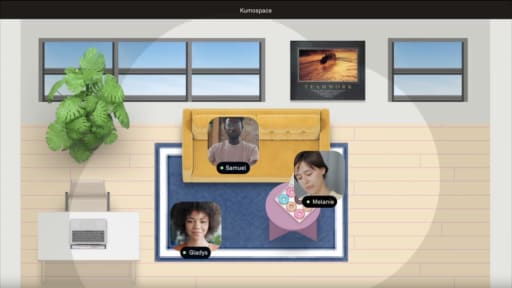
Inside a persistent virtual office, teammates can see who is available, move between rooms naturally, and jump into spontaneous conversations without setting up another formal meeting. Features like spatial audio, virtual desks, team rooms, screen sharing, and lightweight drop-ins recreate the casual coordination that often disappears in remote work.

That combination matters because not every conversation belongs in email. Scheduled Gmail messages are great for updates, announcements, and documentation that people can process on their own time. Kumospace handles the real-time side of collaboration through quick syncs, brainstorming sessions, virtual coworking, and faster decision-making across remote and hybrid teams.

Frequently Asked Questions

Transform the way your team works from anywhere.

A virtual office in Kumospace lets teams thrive together by doing their best work no matter where they are geographically.

Headshot for Sammi Cox
Sammi Cox

Sammi Cox is a content marketing manager with a background in SEO and a degree in Journalism from Cal State Long Beach. She’s passionate about creating content that connects and ranks. Based in San Diego, she loves hiking, beach days, and yoga.

Transform the way your team works.